Thursday, February 16, 2017

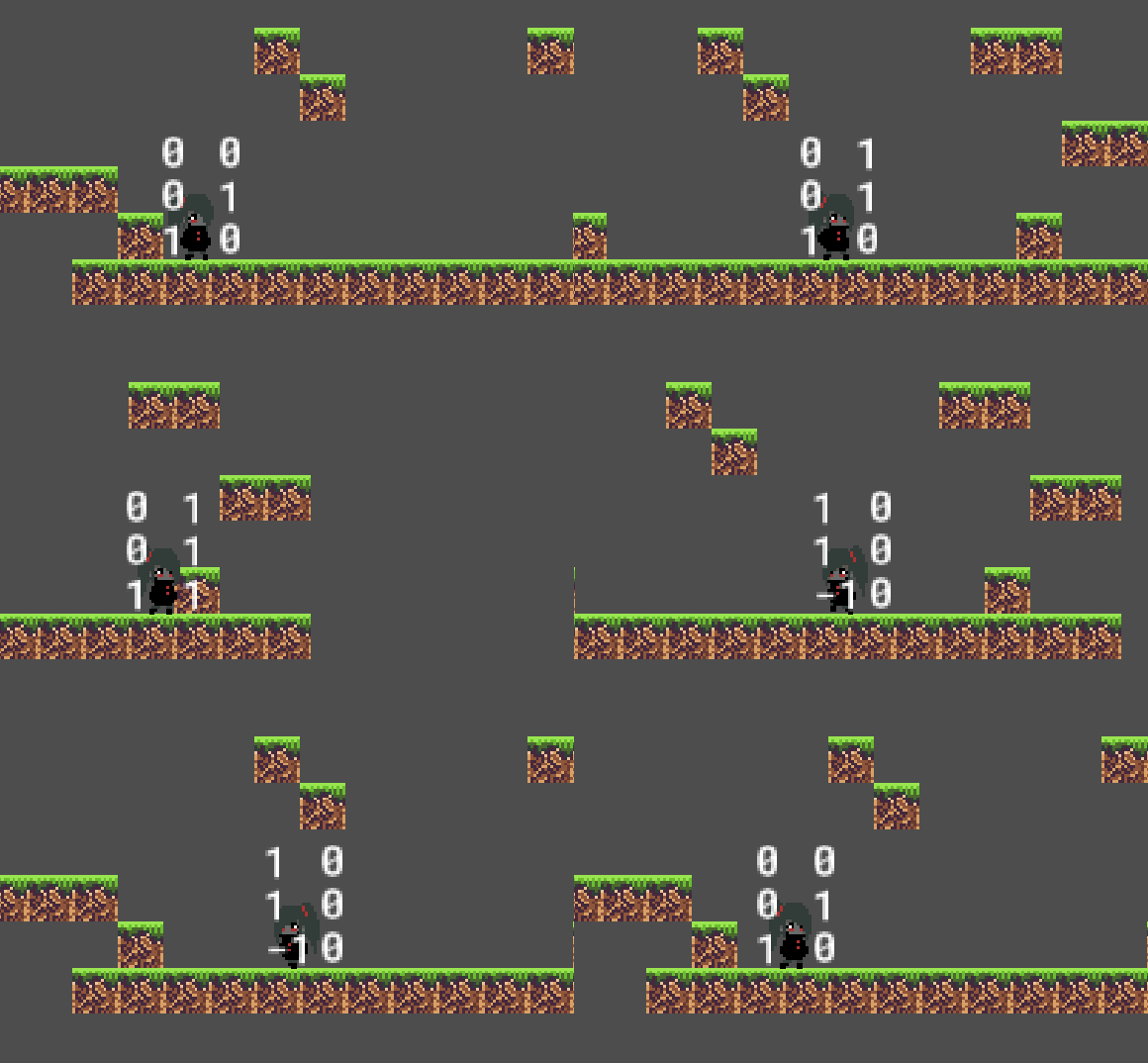
Creating a Tileset Attempt

Creating a tileset is not as-fun-as creating the first tile. 😕

I've been trying to make a nice tileset on and off on my sparetime between my real-life activity. A thousand attempts 😁 of create new, not-so-good-result and erase file is what i am doing for a while.


Sometimes it makes me lose my interest and motivation but here it is, temporary result of tileset.

Tuesday, February 7, 2017

GameMaker Studio 2 Simple Parallax Background

Many tutorials of Game Maker Language parallax background over the internet is using view_xview() and view_yview() function. Unfortunately, this function is deprecated in GameMaker Studio 2. 😕

While searching for the rightway to do the parallax background, the very basic view_current example script from the gamemaker documentation give a nice parallax effect too. 


Solid color background :
So, here is the description from view_current syntax :

Description

This read only variable is only valid in the Draw Event and returns the current view port being rendered. The return value will change during the draw event when you have various views as the draw event is called once for each view port in succession. So when (for example) you are using view port[0] and view port[1] in your game room, the draw event for ALL instances will be run twice, once for each port, and with this variable you can check to see what view is currently being drawn. In general, this is used to only render specific details to a single port when multiple view ports are visible in the room at the same time. See the example code below.

Syntax:
view_current;

Returns:
Real (view port index from 0 to 7)

Example:
if view_current == 0
   {
   var xx = camera_get_view_x(view_camera[0]);
   var yy = camera_get_view_y(view_camera[0]);
   draw_text(xx + 32, yy + 32, "Player 1");
   }
else
   {
   var xx = camera_get_view_x(view_camera[1]);
   var yy = camera_get_view_y(view_camera[1]);
   draw_text(xx + 32, yy + 32, "Player 2");
   }

The above code checks to see which view is currently being drawn and then draws a different text to each view based on the return value.

How to implement it?

Simply create an object and create an instance layer. Put the layer behind other layer and put the object there.

On the object draw event :


if view_current == 0
   {
   var xx = camera_get_view_x(view_camera[0]);
   var yy = camera_get_view_y(view_camera[0]);
   draw_sprite_tiled(sprBackground,0,xx/2,yy);
   }


And thats it. A nice one-layer parallax background. 
Please comment for the rightway to do it. Hey, i'm a newbie anyway. 😁


Friday, February 3, 2017

Newbie Tutorial GameMaker Studio 2 - The Sign Post

Hello there. Today i'm gonna write about how to make a sign post on GameMaker Studio 2.

This is not really a tutorial, is just step by step how i do it.
If you ask me where i get the font on the left gif picture, its called m3x6 font, and i download it from managore.itch.io 

You should have your player and movement set up before you can follow this step by step how to make a sign post.

From my point of view, a sign post is similar from Non Playable Character or NPC. The different is a sign stand still and an NPC wanders around. Well, NPC also need you to push the action button to interact and -maybe- he/she can have multiple answer/branch.

Ok. First, prepare the sprites for the sign. Set the origin to Top Center and then...
..... err, maybe i should skip into the code instead?

Create a font asset, and set it to your needs. For this example i name the asset fntDefault, use m3x6 font, set the font size into 11 and turn off anti-aliasing mode.
Create object Sign Post. Assign the sprite that we draw earlier into the object, and then add 3 events.

Create - the code that runs on the creation of the object
Step - the code that runs on every game frame
Draw - also runs on every game frame to draw something

On the Create events :

// initialize the object
trigger = 0;          // the on and off trigger
textToShow = "";      // the text to draw


On the Step events ;

if (place_meeting(x,y,objPlayer)){     // if the player is touching the sign
    trigger = 1;                       // turn the trigger on
    }                                    
else {                                 // if there is no player around
    trigger = 0;                       // turn back the trigger off
    }                                  // end of code

On the Draw events :

draw_self();                          // Draw the Sign Sprites

if (trigger == 1){                   // if the trigger is on
                                      // this section is to draw the black shadow font
    draw_set_alpha(0.7);              // set the font to 30% transparant
    draw_set_color(c_black);          // the font color, black
    draw_set_halign(fa_center);       // the horizontal align, center
    draw_set_valign(fa_bottom);       // the vertical align, bottom
    draw_set_font(fntDefault);        // font to use, fntDefault
    draw_text (x+1,y-5+1,textToShow); // draw textToShow
// the magic number -5- is how hight your font from the origin of the sprites and
// the x+1 and y+1 is one pixel away to the right and down from the original font
   
                                      // this section to draw the font
    draw_set_alpha(1);                // set the font to 100% visible
    draw_set_color(c_white);          // same as above
    draw_set_halign(fa_center);
    draw_set_valign(fa_bottom);
    draw_set_font(fntDefault);
    draw_text (x,y-5,textToShow);

    }


put the object into the room. And.. nothing happened. 😐


No text to show?

Ofc. remember the code?
textToShow = "";

We have to write something into it. But wait, how to make every object different?
Instead of filling the "textToShow" into the object code, we alter the value from the creation code. Go to the room and double click the object.

And thats it. I hope you like what i write. See ya next time.


Wednesday, February 1, 2017

The Platformer Movement Engine


From the last movement engine, finally i have added some more behaviour to the engine to make it feels more complete. More states, more animations, more effects and more conditions and behaviours.

Its just like an advanced platformer movement engine in the hand of a newbie because of the complexity of the movement, yet only use the basic of gamemaker language script 😂. 

As a beginner, my engine heavily use IF conditional operator for one expression onto another. And it took me couple of days just to fix silly bug. Ofcourse maybe there is more bug yet to be found later on.

And here is the results:


Walking and running.

Jumping


Doublejump-ing


Ducking and sliding


Hanging on the wall


Wall sliding


And ledge grabbing.


So what do you think? 
Would you buy my game someday? 😅


Tuesday, January 31, 2017

GameMaker Studio 2 Failed: Run Program Complete

Every now and then update is available for GameMaker Studio 2. The update require to uninstall the old version and then install the new one. 

My last update to version 2.0.4.64 give error when i try to run the game : 

c:\windows\system32\cmd.exe exited with non-zero status (1)
FAILED : Run program complete


What happened?

Turn out that after the initial install of the new version, GameMaker Studio 2 will download additional file and runtime. If you close the IDE before the download proccess is complete, obviously random errors and fails will occur.

Just get a stable connection and then reinstall GameMaker Studio 2, and then wait for the download proccess is 100% complete after the first launch. It will fix the problem.


And thats it, problem solved. Lets continue to eat, sleep, make games, repeat. 

😄

Monday, January 30, 2017

GML Movement Engine - Bug Fixing

It is very annoying when your character stuck in a wall, or just zapping into another location out of control. There's always a bug to fix in a game. And doing bug-fixing is not fun at all.

I learn the function of draw_text() and string() this week out of bug-fixing. Hey! whats the use of these function anyway? from the GameMaker Help File :

draw_text(x,y,string);

With this function you can draw any string at any position within the room (for drawing real numbers you should use the string function to convert them into text). To combine strings you can use + (see example below), you can also use # to add a line break to the string (should you need to display the # symbol, then you should precede it with a backslash like this "this will draw a \#") and you can also draw quotations by using inverted commas (for example 'I said "Hello"...'). The colour of the text and the alpha are governed by the current base alpha and colour values as set by draw_set_alpha and draw_set_colour

NOTE: The actual position of the text will be influenced by the alignment values set by draw_set_halign and draw_set_valign.

string(val);

With this function you can turn any real number into a string. If the real number is an integer, it will be saved with no decimal places, otherwise, it will be saved with two decimal places.

Well for me, i just draw the result of the custom condition i make on to the screen. For example is, is there a wall in front of my character? if yes make my character stop. 

so i make a custom condition : 
isWall = position_meeting(x+(7*image_xscale), y, objSolid);

...but how do i know that the condition is true or false? is the addition of 7 pixel correct?
and yes thats it. i use the draw_text() and string() to know the result. I just write 
draw_text(objPlayer.x,objPlayer.y,string(isWall));

And suddenly the unclear become more clear . 😄


Thursday, January 26, 2017

GameMaker Studio 2 - Camera View

Moving around the world we create is fun. But when the player is moving outside the view is not fun anymore. Making the camera follows the player is a way to prevent the player moving outside the view.
Directly make the camera follow the player feels ... limited? its like the player sights is limited to half of the screen when moving around.
My second attempt is to make an object that move ahead the player and goes back to the player when no key is pressed.

But there's a glitch in it that if the key left is pressed and then the key right is being pressed afterwards, no no-key event in between of those two event. Because of the key is being pressed one over another without releasing the key, the object if fall way behind the player.
So i make sure that the object is always in front of the player. But the left and right position transition is kinda jumpy and its very annoying.

And after thousand of attempts 😁, finally the result is satisfying. And i got an up and down sight as a bonus.

And yup this is it. 
My personal notes about Camera View. 🙂