
Showing posts with label software. Show all posts
Showing posts with label software. Show all posts
Wednesday, January 22, 2020

Insync

Insync is the official unofficial Google Drive client for PC.
Just like the picture said, insync manage your Google Drive files straight from your desktop.
But, Dropbox?
Because Dropbox start to limit the number of devices that can link to a basic users account up to only three devices.
Because Dropbox is limiting the synchronization support to only Ext4 for linux. Meanings that if you have a dualboot OS Windows and Linux, Dropbox no longer can shared the folder under the same NTFS-shared HDD. Upgrading to a premium users don't change this support.
...errr, OneDrive?
OneDrive is nice, but it doesn't have a GUI linux client -yet. There is a workaround over the net, but a dedicated GUI for linux is nice.
On Windows side, OneDrive doesn't have a separated proxy-setting -yet. It follow the global Windows proxy system setting.
Google Drive?
My personal experience with official Google Drive Client -that only available for windows-, the client would freeze every now and then at system shutdown. The client also had a hard time for merging a folder, resulting many duplicate files with index behind the filename.
OneDrive is nice, but it doesn't have a GUI linux client -yet. There is a workaround over the net, but a dedicated GUI for linux is nice.
On Windows side, OneDrive doesn't have a separated proxy-setting -yet. It follow the global Windows proxy system setting.
Google Drive?
My personal experience with official Google Drive Client -that only available for windows-, the client would freeze every now and then at system shutdown. The client also had a hard time for merging a folder, resulting many duplicate files with index behind the filename.
filetxt.txt
filetxt(1).txt
filebitmap.bmp
filebitmap(1).bmp
...and so on.
Google Drive also don't have a client for linux system yet. So, i have a love-hate relationship with Google Drive :).
Insync + Google Drive?
Insync adds Google Drive functionality to the Windows, Linux and mac OS desktop. Sync, backup, edit and share files easily with one or multiple accounts.

- edited-
Insync has added OneDrive support too as from their blog here:
https://www.insynchq.com/blog/insync-3/
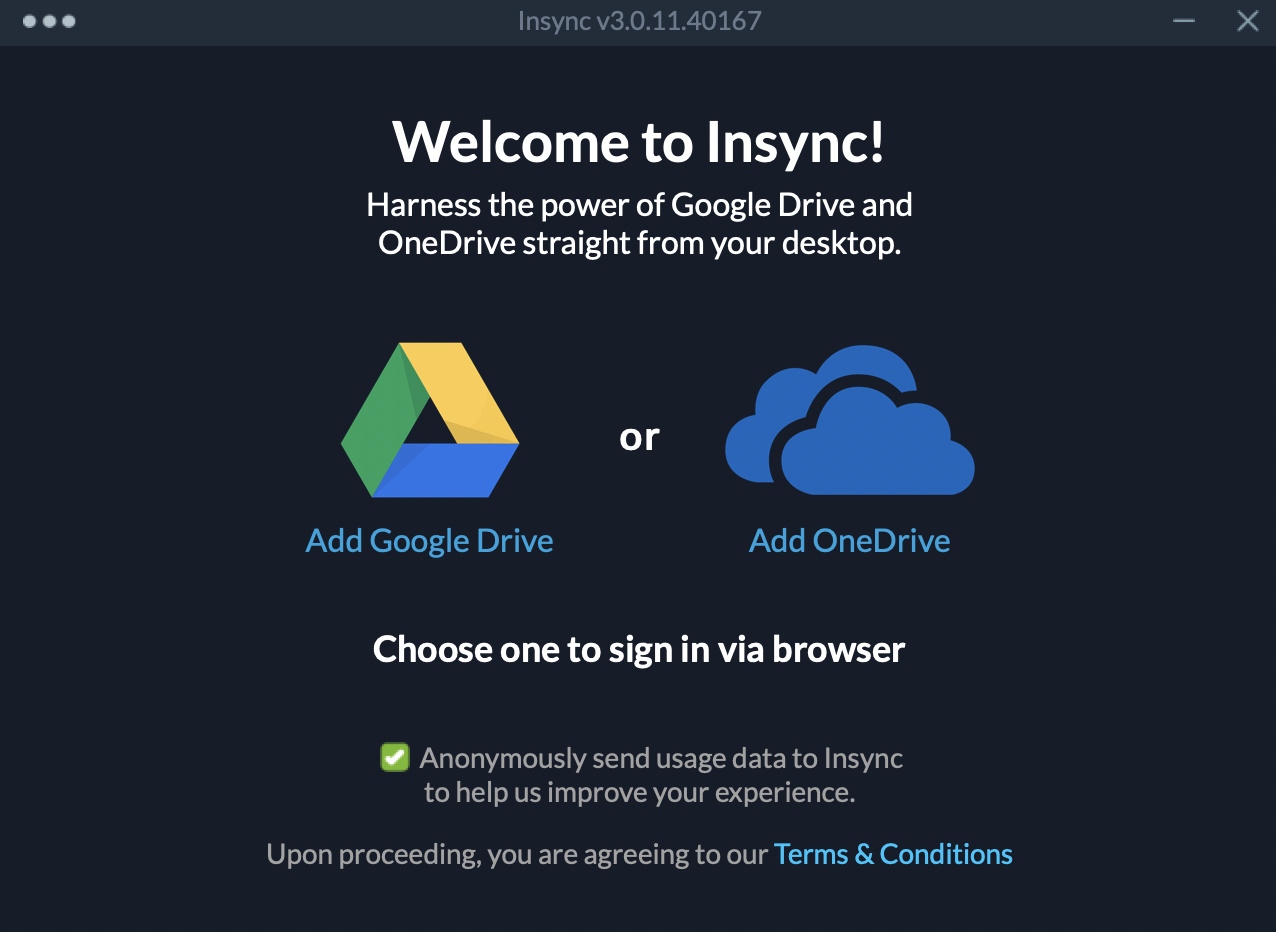
Very happy to use Insync as my main cloud-based storage client for now 😊
Saturday, June 1, 2019
HP rtl8723be Wireless Wifi

Finally i got a new laptop, and it's HP with Radeon graphics and Realtek wireless card. Fortunately, the Realtek wireless, the Realtek RTL8723DE 802.11b/g/n PCIe Adapter to be exact, is not so friendly with linux in general.
Debian won't recognized it. Its friendly derivatives SolydXK won't recognized it too. Ubuntu and Linux Mint is not recognizing it either. To make it worse, i don't have any cable connection. So the wifi is my only option to connect the laptop.
And this is an exhausting journey, as i am not a linux geek.
After i got myself a connected computer, I found this thread :
https://forums.linuxmint.com/viewtopic.php?t=204172
(wow, 2015 thread and the problem still occurs now in 2019)
Download the firmware from here :
https://github.com/lwfinger/rtlwifi_new/archive/master.zip
Copied the zip file into the laptop via FDD, then extract it, and follow the step from the thread or github:
$make
$sudo make install
$sudo modprobe -r rtl8723be
$sudo modprobe rtl8723be
...and finally its working with a very weak signals!

but its working :)
on to the next step:
DEVICE=$(iw dev | grep Interface | cut -d " " -f2)
sudo iw dev $DEVICE scan | egrep "SSID|signal|\(on"
BSS xx:xx:xx:xx:xx signal: -65 dBm SSID: Error404
The above commands get a result range from -59 dBm to -65 dbm, and neither solution from the github or thread change that number. But the connection is just stable and not dropping if the laptop position is near enough from the wifi router.
Well, thats my work around for now. Cheers.
Update :
 updating the kernel to the newest one make the Realtek --RTL8723DE 802.11b/g/n PCIe Adapter-- not being detected -again- by the system.
Reinstalling the firmware using the step above solve the problem.
Well, thats my work around for now. Cheers.
Update :

Reinstalling the firmware using the step above solve the problem.
Thursday, December 29, 2016
GameMaker Studio 2

Its always fun to learn something new, right?
Unfortunately, every game needs a character, and since i am not an artist, i am struggling just to make a very basic character.
.....and after tons of tutorials and youtube, here's the sticky girl


And i think that's good enough for me :).
Saturday, July 2, 2016
HaxeFlixel, SublimeText and Debian (Derivatives)
 Sublime
Text is a sophisticated text editor for code, markup and prose.
Sublime
Text is a sophisticated text editor for code, markup and prose.
Sublime
text is a very popular, cross-platform editor that has significant
Haxe and OpenFL support provided through an open-source plugin. If
you are a Mac, Linux or Windows user, it is one of the most popular
choices for Haxe development.
To
install Sublime Text in Debian, download the tarball at the official
Sublime Text Website http://www.sublimetext.com/3
extract the
tarball and move the directory into /opt/
 $ tar vxjf sublime_text_3_build_3114_ x64.tar.bz2
and then create a symbolic link to use the command
 $ sudo ln -s /opt/sublime_text_3/sublime_text /usr/bin/sublime

and then create a symbolic link to use the command

now we can type sublime to start sublime text

create another symbolic link "subl" so haxeflixel can recognise it
$ sudo ln -s /opt/sublime_text_3/sublime_text /usr/bin/subl

Wednesday, June 24, 2015
Hello World! -Haxe
Hello World! Haxe
 Lets meet haxe, and follow the opening part of the tutorial from here.
if you haven't install haxe yet, follow the installation steps here.
Open terminal
Create file Hello.hx
$ nano Hello.hx

Type in the following source code :
class Hello {
public static function main () {
trace("Hello World!!");
}
}

To compile, run the following command:
$ haxe -main Hello -neko Hello.n
This will create new file Hello.n
To run the file, type:
$ neko Hello.n
Hello.hx:3: Hello World!!
Basic Neko API
From http://api.haxe.org/neko/Lib.html#println :
"Print the specified value on the default output followed by a newline character."
Lets modified the Hello.hx
$ nano Hello.hx
class Hello {
public static function main () {
neko.Lib.println("Hello World!!");
}
}
Save the file.
Compile it
$ haxe -main Hello -neko Hello.n
then run the file
$ neko Hello.n

Hey.. it's working!
if you haven't install haxe yet, follow the installation steps here.
Open terminal
Create file Hello.hx
$ nano Hello.hx

Type in the following source code :
class Hello {
public static function main () {
trace("Hello World!!");
}
}

To compile, run the following command:
$ haxe -main Hello -neko Hello.n
This will create new file Hello.n
To run the file, type:
$ neko Hello.n
Hello.hx:3: Hello World!!
Basic Neko API
From http://api.haxe.org/neko/Lib.html#println :
"Print the specified value on the default output followed by a newline character."
Lets modified the Hello.hx
$ nano Hello.hx
class Hello {
public static function main () {
neko.Lib.println("Hello World!!");
}
}
Save the file.
Compile it
$ haxe -main Hello -neko Hello.n
then run the file
$ neko Hello.n

Hey.. it's working!
HaxeFlixel on SolydK and Other Debian Based Distros
 Lets install HaxeFlixel .
Lest install HaxeFlixel on SolydK64bit!
What is Haxe anyway?
Haxe is an open source toolkit based on a modern, high level, strictly typed programming language, a cross-compiler, a complete cross-platform standard library and ways to access each platform's native capabilities.
...and Flixel?
Flixel is an open source game-making library that is completely free for personal or commercial use. Written entirely in Actionscript 3, and designed to be used with free development tools, Flixel is easy to learn, extend and customize.
...so, HaxeFlixel?
HaxeFlixel is Flixel port to use Haxe language. Create cross-platform games easier and free and all with one codebase. HaxeFlixel use OpenFL library.
...OpenFL?
OpenFL (Open Flash Library) is a fast, open-source implementation of the industry-standard Flash API. Unlike the Adobe implementation, OpenFL uses hardware rendering, compiles to native C++ for target platforms and reaches many more platforms than Adobe AIR. OpenFL is also 100% compatible with Flash Player, so you can still target Flash in the browser, or even AIR if you want. OpenFL uses the Haxe programming language.
tl;dr
Downoad haxe from here.
Or you might want to visit the download page if the link is broken here.
Exstract it

Install the script.
$ ./install-haxe.sh

Test your installation. Should look like this.
$ haxe

$ sudo apt-get install libgl1-mesa-dev libglu1-mesa-dev g++ g++-multilib gcc-multilib

Install lime
$ haxelib install lime
$ haxelib run lime setup
do you want to install the "lime" command? [y]
Test the lime installation
$ lime

Install OpenFL
$ haxelib install openfl
$ haxelib run openfl setup
Test the openfl installation
$ openfl

Install Flixel
$ haxelib install flixel
$ haxelib install flixel-tools
$ haxelib run flixel-tools setup
Test the flixel installation
$ flixel
Now we will test with a new HaxeFlixel project.
Create new flixel template
$ flixel tpl -n "TestFlixel"
Browse into source directory
$ cd TestFlixel/source
Edit menustate.hx file
$ kate menustate.hx

Add code before super.create();
add(new FlxText(10, 10, 100, "Hello, World!")); Save the file.

Go to the root directory project and run the command:
$ lime test linux -64
or
$ lime test neko

This is not an error. This is compiling the project.
note :
lime test nekolime test linux -64lime test windowslime test mac Run this command from the root folder of your project, the default project.xml will be
used automatically. Using the test command will automatically launch the application created.

....and tadaa.
Hello, World!!!

Sunday, December 21, 2014
Clash of Clans on Debian

From wikipedia :
Clash of Clans is a 2012 freemium mobile MMO strategy video game developed and published by Supercell, a video game company based in Helsinki, Finland.[3]
The game was released for iOS platforms on August 2, 2012.[1] For Android, it soft-launched in Canada and Finland on September 30, 2013.[4] On October 7, 2013, it was released on Google Play internationally.[2]
From Supercell.com :
An epic strategy game. Answer the call of the mustache! Join the international fray that is Clash of Clans. Customize your village, build an army and crush your opponents. Like using friendship to strike fear into your enemies? Join a Clan, or establish a Clashing legacy by creating your own. The choice is yours in this millions strong community of Barbarians. Download for free and Clash on, Chief!
How to play Clash of Clans on Debian?
Simple. Use Genymotion Emulator and deploy Android Virtual Machines.
Now download Arm Translation to solve the incompatibility issue from google market/android play store.
Arm Translation v1.1


Download Google Apps For Android 4.3
Google Apps for Android 4.3.
If you using another version of Android other than what has been described on this post, find Google Apps that compatible with your android version on https://goo.im/gapps/.



And accept the license agreement.


Friday, December 19, 2014
Genymotion on Debian Jessie

The goal of this post is to install Genymotion into Debian Jessie 64 bit to emulate android.
Genymotion needs virtualbox to be installed first on the computer.
#apt-get install virtualbox

Registration is needed to download the file.
Sign in to download the file.

Browse the directory where the file is saved.
For example I keep it at /home/username/bin.
Change the permission of the file
$chmod u=rwx genymotion-2.3.1_x64_debian.bin
Execute the file :
$ ~/bin/genymotion-2.3.1_x64_debian.bin

When i try to launch genymotion after the installation, genymotion won't start. Instead it will result some error.
~/bin/genymotion$ ./genymotion

The genymotion.log shows what went wrong.
$ nano ~/bin/.Genymotion/genymotion.log

Now we are going to remove all the Qt library from genymotion directory to force it to use system Qt library.
$ mkdir libQt-old
$ mv *Qt* libQt-old/
Depending on your system, you might or might not meet the dependency library to run Genymotion.
When Genymotion throws another error, try to satisfy the request written from the output of the shell.
for example :

libqtwebkit.so.4 not found.
solution :
install libqtwebkit.
#apt-get install libqtwebkit4.
As for my system (cinnamon desktop), i have to install the following:
1. libqtwebkit4
2. libqt4-script
3. libqt4-svg
4. libqt4-sql
#apt-get install libqtwebkit4 libqt4-script libqt4-svg libqt4-sql
And here it is. genymotion


---------------------------------------------------------------------
For the curious:
Qt is a cross-platform C++ application framework. Qt's primary feature is its rich set of widgets that provide standard GUI functionality.
libqtwebkit4
Web content engine library for Qt
QtWebKit provides a Web browser engine that makes it easy to embed content from the World Wide Web into your Qt application.
libqt4-script
Qt 4 script module
The QtScript module provides classes for making Qt applications scriptable.
libqt4-svg
Qt 4 SVG module
The QtSvg module provides classes for displaying the contents of SVG files.
Scalable Vector Graphics (SVG) is a language for describing two-dimensional graphics and graphical applications in XML.
libqt4-sql
Qt 4 SQL module
The QtSql module helps you provide seamless database integration to your Qt applications.
If you wish to use the SQL module for development, you should install the libqt4-dev package.
The Error Message :


Subscribe to:
Posts (Atom)